Tuesday, August 7

Deployment is currently disabled error when testing BizTalk maps from VS2010

When writing unit tests to test your BizTalk maps from within Visual Studio, you mat sometimes get the following error: Deployment is currently disabled. DeploymentItem "_" on test "_" was not deployed


To fix this error, double-click on the 'local.testsettings' file in your solution


Click on the 'Deployment' tab on the left pane, and click on the 'Enable Deployment' tick box


The tests should run as expected now

Thursday, July 26

BizTalk System.ServiceModel.AddressAccessDeniedException

You configure a self-hosted service at a BizTalk receive location using a localhost address, and when you try to enable the service (receive location) you get the above error with the details 'HTTP could not register URL http://+:80/Sales.CreateFlightBooking.HoldFlightSegments.v1/. Your process does not have access rights to this namespace'

To overcome this issue, you need to

1. Open the Visual studio command prompt (using the run as administrator option)
2. Type in the command netsh http add urlacl url=http://+:80/<the rest of the address that comes after localhost/> user=DOMAIN\username (So, if your full address is http://localhost/company.bookings.carbookingservice, you type in http://+:80/company.bookings.carbookingservice)
3. Enter to run the command

You should then get a 'URL reservation successfully added' message

Go back to enable the receive location. It should start successfully now (I sometimes reset IIS before this step )

Thursday, June 7

Adding validation code in SOAPUI mock services

If you have a requirement to run soap message validation within your SOAPUI mock service, the following steps will fulfill this requirement.

You might first start by viewing and implementing my blog here: Deploying a SOAPUI mock service as a web application to know how to get your mocks running and hosted outside of SOAPUI

1. Once you have created your SOAPUI mock service, double-click on the mock operation you wish to run the validation against. This should open up the MckOperation properties as shown in the second image below


2. Change the Dispath option (shown above) from Sequence to Script to open the groovy scripting window

3. Enter the following script which basically compares the request message to the mock WSDL, and raises an error if it does not validate. The script then informs the mock service on which response message to return if an error occurs

def wsdlcontext = context.mockService.getMockedInterfaces()[0].getDefinitionContext();
def validator = new com.eviware.soapui.impl.wsdl.support.wsdl.WsdlValidator(wsdlcontext);
def msgExchange = new
com.eviware.soapui.impl.wsdl.panels.mockoperation.WsdlMockRequestMessageExchange(mockRequest,
mockOperation);
def errors = validator.assertRequest(msgExchange, false);
if (errors.length > 0 )
return "MockResponseInvalid2"
else
return "Response 10"


4. To create the error message called MockResponseInvalid2. Right-click in the mock responses window as shown below and click on 'New MockResponse' to create a new response


5. Give it a name that matches the name of the message you want  your mock to return when an invalid request comes through


6. At this point, you can either leave/modify the fault message or you can click on the SOAP fault button highlighted below to create a SOAP fault.


7. If you choose to create a SOAP fault, It asks if you want to overwrite the message. Click on Yes

8. Modify the resulting SOAP fault message as you wish.


9. You can now run valid and invalid requests against the mock operation to test your validation. Invalid request messages should return the soap fault message you just created

Thursday, May 31

Deploying SOAPUI mock service as a web application

I recently worked on a heavily TDD (test driven development) SOA project in which we used SOAPUI extensively to unit test atomic pieces of work. It was a large team of developers with a constant need to test new and on-going development work against mock services.

I tried to use the tutorial here but kept running into errors first wth JBoss and then with Tomcat (I eventually used Tomcat because I liked the UI better).

I have therefore re-written the tutorial with the steps I took to get the whole system in place.

Follow these steps to install Apache Tomcat  and then create and deploy your mocks as war (Web application ARchive) files

1. Download  and install the latest java SDK from http://www.oracle.com/technetwork/java/javase/downloads/ for your system (for me it was 7u4).
Run the relevant (jdk-7u4-windows-x64) installer with the default options, which will install Java into "C:\Program Files\Java\jdk1.7.0_04\". Note: ideally use the full JDK (Java Development Kit), which contains the JRE (Java Run-Time Engine) and other useful tools for developers


2. Install Apache Tomcat from http://tomcat.apache.org/download-70.cgi (I downloaded the apache-tomcat-7.0.27.exe from the 32-bit/64-bit Windows Service Installer (pgp, md5)
 link ). I installed Tomcat to port 8090 on localhost. Make sure the Tomcat Manager is also installed


If you would rather try JBoss as the web server, a lovely tutorial on JBoss can be found here

3. Open SOAPUI (A trial can be downloaded from http://sourceforge.net/projects/soapui/files/). The following mock service instructions are modified from this nice tutorial

4. We will now create a new mock service which will eventually be deployed and exposed via Tomcat. The first thing you will need is the WSDL of the web service you want to mock. I’m going to use a publicly available temperature converting web service available here: http://www.webservicex.net/ConvertTemperature.asmx?WSDL

5. Create a new SOAPUI project (Right-click on 'Projects' in SOAPUI)


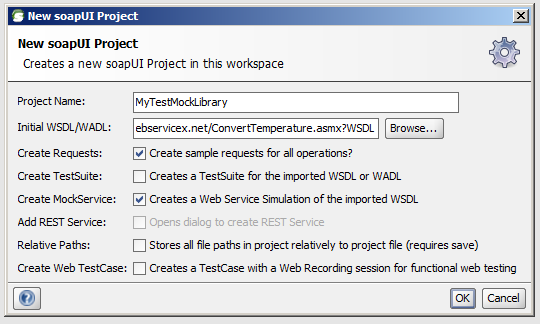
5. Fill in the dialog as shown below, and click OK


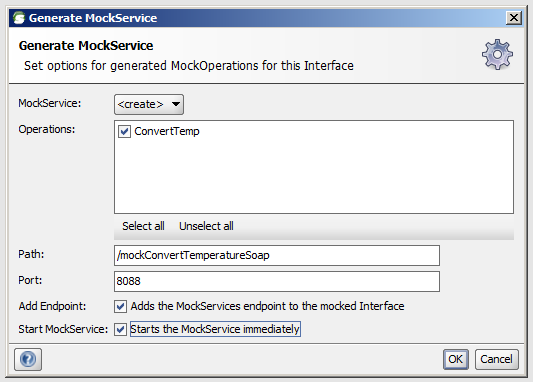
You will be prompted by SOAPUI (after it inspects the WSDL) to set options for the Mock Operations for the ConvertTemp interface. Leave the port on the default srtting as tick the 2 boxes as shown below and click OK


6. Specify a name for the MockService to hold that interface. (I used ConvertTemperatureSoapMockService) and click OK


Repeat this process for the other MockServices prompted by IIS (I used ConvertTemperatureSoap12MockService)

You should now have something similar to the structure shown below


7.  Right-click on the project you just created and select the 'Deploy As War' menu item


8. Fill in the dialog as shown in the image below. (C:\Projects\MyTestMockLibraryFolder is the location to which I am deploying the web applicaiton for the mock service). Tick the 'Check to enable WebUI' checkbox so that you can view the mock service using the WebUI. Click on OK


SOAPUI will prompt you to save the project file so you can re-open it later if you need to modify it. Select a save location and click on OK. Note: Not sure if this is a bug or simply misleading interface, but SOAPUI will NOT create the war file in the War Directory you specify using the settings above. It will create the actual web applicaiton. If you want SOAPUI to actually generate the war file in the location, you need to fill in the 'War File' box by specifying the full path including the directory as such: C:\Projects\MyTestMockLibraryFolder\MyTestMockLibrary.war)

SOAPUI then creates the web application. The soapui log should be something like the image below


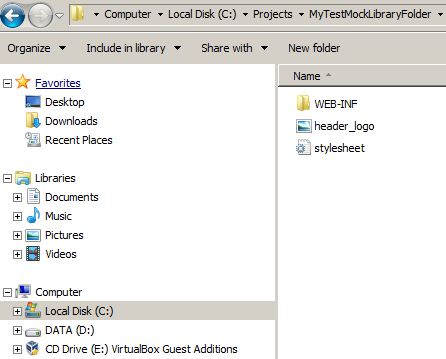
10. Browse to the specified War Directory and you should see the web application components

11. Open the WEB-INF folder and note the web.xml file

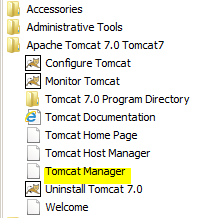
12. Check that Tomcat is installed and running by browsing to the port you specified when installing it. (http://localhost:8090 for me). You should see the welcome to Tomcat page. If not, check services and make sure that the Apache Tomcat 7.0 Tomcat7 service is running. Click on the 'Manager App' button

10. On the App Manager page, scroll down to the 'Deploy' section


12. Using the 'Deploy directory or War file located on server' section, fill in the Context Path as the service name for the service url you added in SOAPUI earlier (see first image below)


The Deployment seciton in the App Manager should look like the image below


13. In the 'XML Configuration File URL' box, type in the web.xml path for the file you noted in step 11 above (i.e. /WEB-INF/web.xml)

14. Type or paste the War Directory path into the 'WAR or Directory URL' box. The section should now look like the image below


15. Click on Deploy. You should see an OK message at the top of the App Manager window. Your web application should now be deployed


16. Still on the App Manager page, find the new service and click on the link


17. You will probably get an error page stating that the resources are not available. In the browser adress bar, add a forward slash to the URL (http://127.0.0.1:8090/TestMockLibrary becomes http://127.0.0.1:8090/TestMockLibrary/) and hit the Enter button on your keypad. You should now see the Mock Service page in the WEBUI.


18. Click on one of the Mock Operations as shown to view the WSDL


19. You can now call this service from any application using the URL as long as Tomcat is running on the host machine

Wednesday, February 29

SamlSecurityTokenRequirement enforceAudienceRestriction (AudienceUriMode) error when using BizTalk 2010 with a federated binding

When using a BizTalk 2010 WCF service in a federated environment, you may get the following non-descriptive error when you try to make a call into the BizTalk WCF service

"An unsecured or incorrectly secured fault was received from the other party. See the inner FaultException for the fault code and detail".

This error unfortunately has nothing useful in the innerexception more often than not. Various security issues could cause this error (including certificate authentication). Turn on tracing on the BizTalk receive location by adding the following section into the web.config file for the service.
You can add it between the <connectionstrings /> and <system.web> nodes (just a guide)

    <system.diagnostics>
      <sources>
            <source name="System.ServiceModel" switchValue="Error, Warning, Verbose" propagateActivity="true">
            <listeners>
               <add name="traceListener"
                   type="System.Diagnostics.XmlWriterTraceListener"
                   initializeData= "c:\log\BizTalktraces.svclog" />
            </listeners>
         </source>
      </sources>
  </system.diagnostics>
Make sure to create a "log" folder at the root of your c: drive as the configuration suggests. For the purpose of this troubleshooting, you can also grant full permissions to everyone on the folder to make sure it can be written to.

When you try to run the service again and check the BizTalktraces.svclog file in a text editor, you might find the following lines in the stack trace:

<InnerException><ExceptionType>System.InvalidOperationException, mscorlib, Version=4.0.0.0, Culture=neutral, PublicKeyToken=b77a5c561934e089</ExceptionType><Message>ID1032: At least one 'audienceUri' must be specified in the SamlSecurityTokenRequirement when the AudienceUriMode is set to 'Always' or 'BearerKeyOnly'. Either add the valid URI values to the AudienceUris property of SamlSecurityTokenRequirement,  or turn off checking by specifying an AudienceUriMode of 'Never' on the SamlSecurityTokenRequirement.</Message>

By default the federation binding will typically add a federationServiceHostConfiguration extension to the servicebehaviors section.

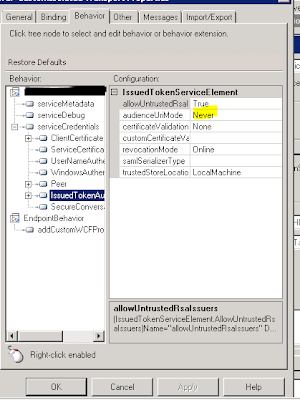
Open the receive location 'Behavior' tab, and click on the 'IssuedTokenAuthenticaiton' node. Set the audienceUriMode to 'Never'


Remove the federationServiceHostConfiguration extension from the configuration (should be in the same tab, above 'serviceMetadata', but has already been removed in the picture above).

This should stop the errors.

BizTalk 2010 message submission with transport-level security to SharePoint 2010 forms library without the WSS adapter - Part 2

The Form submittal WCF service

In this post I will try to briefly explain the steps needed to create a WCF service to submit BizTalk messages into a SharePoint 2010 form library

The steps are basically as follows:
1. Create a WCF service
2. Add a service reference to the SharePoint Copy service

The SharePoint environment includes built-in Web services in the Windows SharePoint Services that can be used to work with areas of the SharePoint object model remotely. Each Web application Web service is installed in the _vti_bin directory, which maps to the following file system location:
%COMMONPROGRAMFILES%\Microsoft Shared\web server extensions\12\ISAPI

These services allow developers to manipulate information stored in SharePoint sites. Msdn lists these services on this link

The WCF service below calls one of these services, namely the Copy web service, using the CopyIntoItems operation to post xml data into a form library hosted within a SharePoint site. the URL for the service(s) is typically relative to the site you wish to manipulate. e.g. http://sharepointservername/sharepointsitename/_vti_bin.copy.asmx

Below is the cample code for a WCF service which uses a service reference to call the copy service for my sharePoint site (this is very basic first-draft code showing the main functionality of the service, derived and slightly modified from R Seroter's example in his post, which I referred to in part 1). This is not a tutorial on WCF services, so please read about WCF services to understand the service better.

The Copy web service expects a few parameters:
  • The source uri, 
  • the destination path (including the SharePoint site URL, the form library name, which is the name of the form library created in part 1 and the filename you wish to call the form document when it is displayed in SharePoint),
  • the xml file itself sent as bytes,
  • an array of SharePoint properties related to the submitted xml
  • and the user credentials of a user with permissions to create the form in the SharePoint site. In this case, I pass the credentials in directly via the ClientCredentials of the proxy. I added the credentials into the web.config file as keys in the Appsettings section and called them within the code. That way, they can be changed when needed if the permissions in SharePoint need to be changed

ISendToSharePointFormsService.cs

using
using System.Collections.Generic;
using System.Linq;
using System.Runtime.Serialization;
using System.ServiceModel;
using System.Text;
 namespace
{

 [SendToSharePointServiceContract(Namespace = http://mynamespace/biztalk.wcf.SendToSharePoint/v1.0)]
 public interface ISendToSharePointFormsService
 {
  [OperationContract]
  string SendXmldoc(string strFile, string fileName, string servertouse, string librarytouse);

  [OperationContract]
  string GetXmlToString(string strFile);

 }
}


SendToSharePointFormsService.svc.cs

using
using System.Collections.Generic;
using System.Linq;
using System.Runtime.Serialization;
using System.ServiceModel;
using System.Text;
using System.IO;
using System.Xml;
using System.Net;
using System.Configuration;

namespace SendToSharePoint
{
  public class SendToSharePointFormsService : ISendToSharePointFormsService
  {
    public SendToSharePointFormsService()
    {
    }

    public string SendXmldoc(string DocinStringForm, string fileName, string servertouse, string librarytouse)
    {
     //declare variables
      string siteRoot, docLibrary, uname, pwrd, domn;

      //read appsettings for vars needed for sending file to SP
      try
      {
        siteRoot = servertouse;
        docLibrary = librarytouse;
        uname = ConfigurationSettings.AppSettings["UsernameApprovals"].ToString();
        pwrd = ConfigurationSettings.AppSettings["PasswordApprovals"].ToString();
        domn = ConfigurationSettings.AppSettings["userdomain"].ToString();
      }
      catch (Exception apps)
      {
        return "Error reading configuration settings from app.config - " + apps.InnerException;
      }

      //send to library
      string finalresult = UploadXmlToSharePoint(DocinStringForm, siteRoot, docLibrary, fileName, uname, pwrd, domn);

      return finalresult;

    }

    #region Actual sender
    private string UploadXmlToSharePoint(string docToAdd, string siteRoot, string docLibrary, string fileName, string userName, string password, string domain)
    {

      //build full destination Url
      string destinationPath = siteRoot + "/" + docLibrary + "/" + fileName;

      //convert the xml string sent from BizTalk into a byte array
      byte[] fileIn = ConvertDocToBytes(docToAdd);

      //holds MOSS service response values
      SharePointSvc.CopyResult[] results;
     
      //required fieldinformation array
      SharePointSvc.FieldInformation fieldInfo = new SharePointSvc.FieldInformation();
      SharePointSvc.FieldInformation[] fieldInfoArray = { fieldInfo };

      //destination url (notice that it's an array, meaning //multiple sites COULD be targeted
      string[] destUri = { destinationPath };

      //create instance of web service proxy
      SharePointSvc.CopySoapClient copycl = new SharePointSvc.CopySoapClient();

      //pass valid credentials
      copycl.ClientCredentials.Windows.ClientCredential = new NetworkCredential(userName, password, domain);

      //copycl.ClientCredentials.Windows.AllowNtlm = true;
      //call primary operation; sourceUri, doesn't matter here

      copycl.CopyIntoItems("http://none", destUri, fieldInfoArray, fileIn, out results);
     
      //check for error and return final result
      if (results[0].ErrorMessage != null)
      {

        return "Error: " + results[0].ErrorMessage;
      }
      else
      {
        return "Success Sending File to SharePoint at " + System.DateTime.Now.ToString();
      }

  }

   #endregion 
 
 #region conversions
   
     //bytes
    public byte[] ConvertDocToBytes(string xmlString)
    {
     ASCIIEncoding encoding = new ASCIIEncoding();
     return encoding.GetBytes(xmlString);
    }
    
    #endregion
  }
}


Host the SendToSharePoinForms WCF service in IIS (I believe there are numerous posts on the Internet on the various methods of hosting a WCF service in IIS)

Go on to Part 3 - Posting the forms from inside a BizTalk orchestration

Friday, February 24

SharePoint/InfoPath cross-domain submission issue

When you use InfoPath to design a form for data submission to a wcf service (or web service) and host it in a SharePoint form library, you may get the following error when trying to submit the form data to a service hosted within the same domain:
"The form cannot be submitted because this action would violate cross-domain restrictions.
If this form template is published to a SharePoint document library, cross-domain access for user form templates must be enabled under InfoPath Forms Services in SharePoint Central Administration, and the data connection settings must be stored in a UDC file in a data connection library in the same site collection"

This issue is a cross between the way InfoPath stores URL information in your data connections and the way SharePoint resolves URLs.

The most likely cause of this would be the form being publishd to SharePoint server using a URL in the format http://servername/sitename.domain.com, and a user trying to access the form via the url http://servername/sitename/libraryname/... etc

To resolve this issue, a mapping needs to be made to resolve http://servername/sitename/libraryname/ to point to http://servername/sitename.domain.com

To do this, go to SharePoint Central Administration, click on System Settings, click on 'Configure alternate access mappings' under Farm Management and ten click on 'Add Internal URLs' to add the mappings. It is mostly self-explanatory from this point